

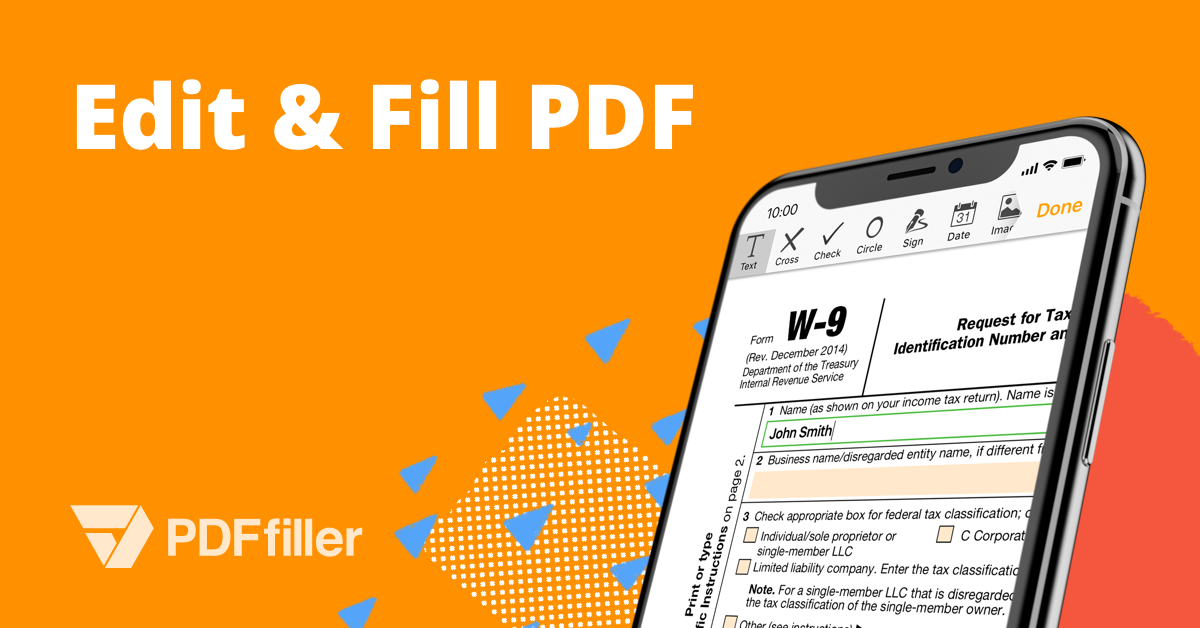
pdfFiller Features
If you’ve ever tried to edit a PDF and felt like you were fighting the file instead of working with it, you’re not alone. PDFs were originally designed to be a fixed, “what you see is what you get” format — great for preserving how a document looks, terrible for actually changing anything inside it. Try to fix a typo, fill out a form that wasn’t built for typing, or grab a signature from someone three time zones away, and suddenly a five-minute task turns into an afternoon of printing, scanning, emailing, and re-scanning.
This is a daily reality for millions of people. Freelancers waste time reformatting client contracts. HR teams chase new hires for handwritten signatures. Students fumble with scanned assignment sheets. Accountants juggle tax forms that seem allergic to digital editing. And business owners lose hours every week just moving paperwork from one inbox to another.
pdfFiller was built to solve exactly this kind of friction. Instead of forcing people to piece together five different tools — one for editing, another for signing, a third for converting files, and so on — it brings everything into a single, cloud-based workspace. You open your browser, upload a document, and from that point on, almost anything you’d ever need to do with a PDF is available in one place.
What’s interesting is that most of these frustrations aren’t really about the documents themselves — they’re about mismatched tools. A PDF viewer wasn’t built to handle signatures. A basic editor wasn’t built to protect sensitive data. And none of them were built to talk to each other, which is why so much time gets lost simply moving a file from one program to the next. The fix isn’t a better single-purpose tool; it’s removing the need to switch tools at all.
In this guide, we’re going to walk through eleven of the most genuinely useful pdfFiller features — the ones that consistently save people time, reduce errors, and take the sting out of document management. Along the way, we’ll also look at who benefits most from the platform, some practical tips for getting more out of it, and answers to the questions people ask most often before they commit to using it.
Why pdfFiller Has Become a Preferred PDF Solution
Most traditional PDF software is built around a single job. One app lets you view PDFs. Another lets you sign them. A separate tool converts them to Word. If you needed to do all three, you were stuck bouncing between programs, re-uploading the same file over and over, and hoping nothing got lost or corrupted along the way.
pdfFiller takes a different approach. It treats the PDF not as a static image of a document, but as a living file that can be edited, filled, signed, converted, protected, and shared — all from the same dashboard. With it, you can:
- Edit PDFs directly in your browser
- Fill out forms instantly, without printing anything
- Create legally binding electronic signatures
- Convert files between multiple formats
- Merge separate PDFs into one, or split one into several
- Redact and protect sensitive information
- Automate repetitive document workflows
- Collaborate with teammates in real time
- Store documents securely in the cloud
- Access your files from virtually any device, anywhere
The appeal isn’t any single one of these features in isolation — plenty of tools can do one or two of them reasonably well. The real value is having all of them under one roof, so you’re not constantly switching contexts, re-uploading files, or paying for five different subscriptions to cover what one platform already does.
With that context in mind, let’s get into the specific features that make the biggest difference in day-to-day document work.
1. Edit Any PDF Without Original Source Files
Here’s a scenario almost everyone has run into: you receive a PDF, you need to change one line of text, and you don’t have the original Word or InDesign file it was created from. Traditionally, that meant one of two things — recreating the entire document from scratch, or awkwardly covering the old text with a white box and typing over it (which never looks quite right).
pdfFiller removes that limitation entirely. Because it treats the PDF as an editable canvas rather than a locked image, you can modify nearly every element inside the file, even without access to the original source. That includes:
- Editing existing text directly, word for word
- Deleting content you no longer need
- Inserting new paragraphs or sections
- Changing fonts to match the rest of the document
- Resizing text so it fits properly
- Moving images to a new position
- Inserting new graphics or logos
- Adding checkmarks where needed
- Inserting dates automatically
- Creating custom fields for repeated use
What makes this particularly useful is that it doesn’t disturb the rest of the document’s formatting. You’re not rebuilding a page from scratch and hoping the margins line up — you’re making a targeted edit and leaving everything else exactly as it was.
Why this matters: This single feature alone eliminates hours of manual work for anyone who regularly deals with contracts, reports, or forms that need small but frequent updates. It also means you don’t need to own or learn a separate design program just to fix a typo or update a date. For small businesses and freelancers especially, that’s real money saved on software licenses.
Consider a freelance consultant who sends out a standard service agreement to every new client. The core terms rarely change, but the client name, project scope, and fee always do. Without proper editing tools, that consultant would either be retyping the entire contract from a Word file each time, or manually whiting out and overtyping sections of a PDF — a process that often looks unprofessional and invites mistakes. With direct PDF editing, the same consultant opens the last contract, updates the relevant fields, and has a polished, client-ready document in under a minute.
2. Fill PDF Forms in Minutes
Forms are where PDFs cause the most frustration. Tax documents, insurance paperwork, employment applications, rental agreements — these are often distributed as static PDFs that were never designed to be typed into. The traditional workaround is painfully familiar: print the form, fill it out by hand, scan it back in, and hope the scan is legible.
pdfFiller lets you skip every one of those steps. It recognizes form fields (or lets you add them yourself if the PDF wasn’t built with them) and allows you to complete the entire document digitally, using tools like:
- Text boxes for typed responses
- Checkboxes for yes/no or multiple-choice sections
- Radio buttons for single-selection questions
- Date fields that format automatically
- Drop-down menus for standardized answers
- Auto-fill options that remember your commonly used information
The result isn’t just faster — it’s more accurate. Handwriting is a common source of errors on paper forms; digital typing removes that risk almost entirely. It also means you can complete a form on your laptop, tablet, or phone in the time it would have taken just to find a working printer.
For anyone who deals with recurring paperwork — HR professionals processing new hires, students submitting applications, or small business owners handling vendor forms — this feature alone can save several hours a month.
There’s also a psychological side to this that’s easy to underestimate. Forms that used to feel like a chore — because completing them meant printing, hunting for a working pen, and scanning everything back in afterward — now take a fraction of the time and effort. That matters more than it might seem at first glance, especially for organizations that depend on customers or applicants actually finishing a form rather than giving up on it halfway through.
3. Create Legally Binding Electronic Signatures
Few things stall a deal, a hire, or a lease faster than waiting on a signature. Maybe the other party is traveling. Maybe they don’t have a printer. Maybe the document needs to go through three people before it’s finalized. Whatever the reason, delays around signing are one of the most common bottlenecks in business.
pdfFiller’s built-in eSignature tool addresses this directly. Instead of printing, signing, and scanning a document, users can sign within seconds, using whichever method suits them:
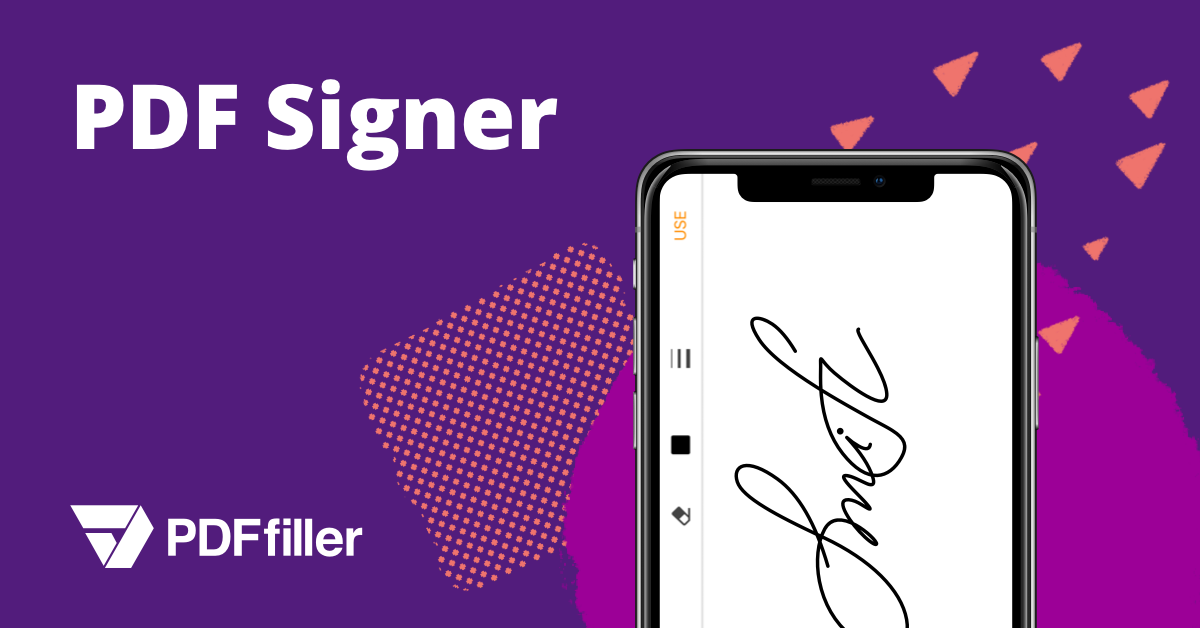
- Drawing a signature with a mouse, trackpad, or touchscreen
- Uploading an image of a handwritten signature
- Typing a name and converting it into a signature-style font
- Reusing a saved signature for future documents
- Sending signature requests to multiple recipients, in sequence or all at once
This isn’t just a convenience feature — it’s the difference between closing a deal today versus next week. Electronic signatures created through pdfFiller are commonly used to accelerate documents such as:
- Employment agreements
- Rental and lease contracts
- Sales proposals
- Business partnership agreements
- Legal forms and affidavits
- Financial and loan paperwork
The signing experience stays simple on the user’s end — a few clicks — while still meeting the standards required for legally recognized electronic signatures. For businesses that regularly send out contracts or agreements, this feature alone can shrink turnaround time from days to minutes.
Picture a small landlord finalizing a lease with a tenant who’s relocating from another city. Under the old process, the lease would need to be printed, mailed, signed, scanned, and returned — often adding days to a move that’s already on a tight timeline. With electronic signatures, the same lease can be sent, reviewed, and signed the same afternoon, with both parties receiving a completed copy instantly. Multiply that scenario across dozens of tenants, employees, or clients a year, and the cumulative time saved becomes substantial.
4. Convert PDFs Into Multiple File Formats
Not every document needs to stay a PDF forever. Sometimes you need to pull data into a spreadsheet, edit a report in Word, or drop content into a slide deck. Manually retyping content from a PDF is slow and invites transcription errors — and that’s before you even try to preserve the original formatting.
pdfFiller supports conversion across a wide range of common formats, including:
- PDF to Word
- PDF to Excel
- PDF to PowerPoint
- PDF to JPG
- Word to PDF
- Excel to PDF
- Image to PDF
Because the conversion process preserves layout and formatting wherever possible, you’re not left cleaning up a mess of misaligned text and broken tables afterward. A few clicks and the file is ready to use in whatever format the situation calls for.
This is especially useful for professionals who move between file types constantly — someone might receive a signed PDF contract, need an editable Word version for revisions, and eventually need it back in PDF form for final distribution. Instead of juggling multiple conversion tools (many of which strip out formatting or introduce errors), everything happens in the same platform where the file already lives.
5. Merge and Split PDF Documents Effortlessly
Document sprawl is a quiet productivity killer. A single project might generate dozens of separate PDFs — contracts, invoices, supporting evidence, appendices — and keeping track of them individually becomes its own job. On the flip side, sometimes a single PDF is too large or covers too many unrelated topics, and it needs to be broken into smaller, more manageable pieces.
pdfFiller handles both directions of this problem. You can combine multiple documents into a single, well-organized file, or split a large PDF into smaller sections, depending on what the situation calls for.
Common scenarios where this comes in handy include:
- Employee onboarding packets that combine offer letters, tax forms, and handbooks
- Financial reports that need to be compiled from multiple statements
- Legal evidence that must be organized and submitted as a single exhibit
- Medical records that need to be consolidated for referrals or insurance
- Project documentation spanning multiple contributors
- Business proposals that pull together several supporting documents
Beyond the obvious time savings, this feature makes documents genuinely easier to share and review. Nobody wants to open twelve separate email attachments to piece together one project file — a single, well-ordered PDF is far easier for everyone involved.
6. Protect Sensitive Information Using Redaction Tools
Privacy isn’t optional anymore. Regulations across healthcare, finance, and legal industries require that sensitive information be removed before documents are shared externally — and simply covering text with a black box in an image editor doesn’t actually delete the underlying data. Anyone with basic tools can often uncover it.
pdfFiller includes genuine redaction tools that permanently remove sensitive information from a document, rather than just hiding it visually. This is a meaningful distinction: redaction deletes the data outright, so there’s nothing left to recover.
Information commonly redacted using this feature includes:
- Social Security numbers
- Bank account numbers
- Personal home addresses
- Medical history and health information
- Client-identifying details
- Financial records and figures
This feature matters most for industries where a privacy slip-up isn’t just embarrassing — it’s a compliance violation with real legal and financial consequences. Healthcare providers protecting patient records, legal professionals handling case files, and financial institutions managing client data all rely on proper redaction to stay on the right side of regulations like HIPAA or data protection laws.
It’s worth pausing on why this distinction between visual hiding and true redaction matters so much in practice. A document with a black box drawn over a section still contains the original text underneath — copy and paste it into another program, and it can reappear instantly. That’s precisely the kind of oversight that turns a routine document share into a data breach. Proper redaction avoids that risk entirely by removing the content at the source rather than layering something on top of it.
7. Cloud-Based Access From Any Device
The days of being tied to one desktop computer with all your important files on it are largely over — or at least they should be. Modern work happens across laptops, phones, tablets, home offices, and client meetings, often within the same day. If your documents only live on one machine, you’re constantly at risk of being stuck without access exactly when you need it.
pdfFiller stores your documents securely in the cloud, meaning they’re accessible from virtually any device with an internet connection, including:
- Windows computers
- Mac systems
- Android phones
- iPhones
- Tablets
- Standard web browsers, with no software installation required
Because everything syncs through the cloud, an edit made on your laptop before a meeting is already reflected when you pull the file up on your phone in the parking lot. There’s no need to email documents to yourself, carry around a USB drive, or worry about which version is the “real” one.
For professionals who travel, work remotely, or simply move between office and home regularly, this kind of consistent access isn’t a luxury — it’s become a basic requirement for staying productive.
8. Simplify Team Collaboration
Anyone who has tried to collaborate on a document over email knows the chaos that follows. “Final_v2.pdf” becomes “Final_v2_ACTUAL.pdf,” which becomes “Final_v2_ACTUAL_useThisOne.pdf,” and by the time everyone’s caught up, nobody’s entirely sure which version has the latest changes.
pdfFiller replaces that mess with centralized collaboration. Instead of emailing files back and forth, team members work from a shared, synced version of the document, where they can:
- Review content
- Make edits directly
- Leave comments for context
- Request specific changes
- Track the document’s progress in real time
- Share completed forms with the right people, instantly
This kind of centralized workflow does more than save time — it reduces the confusion and miscommunication that come from working off outdated versions. For businesses handling a high volume of documents, whether that’s a legal team reviewing contracts or a marketing team approving proposals, this transparency keeps projects moving without the usual back-and-forth.
9. Automate Repetitive Document Workflows
A huge amount of business paperwork is repetitive by nature. Onboarding a new employee follows roughly the same steps every time. So does registering a new customer, approving a routine invoice, or renewing a standard vendor agreement. Doing each of these manually, every single time, adds up to a significant drain on time and attention.
pdfFiller includes workflow automation tools designed specifically to handle this kind of repetition. Processes that can be automated include:
- Employee onboarding paperwork
- Customer registration forms
- Invoice approvals
- Vendor agreement renewals
- Compliance documentation
- Internal approval chains
Rather than manually routing a document from person to person, automated workflows move it along on their own — notifying the right people at the right stage, and flagging anything that needs attention. This doesn’t just save time; it frees up employees to focus on tasks that actually require judgment and expertise, instead of repetitive administrative busywork.
10. Extensive Template Library Saves Valuable Time
Building the same type of document from scratch, over and over, is one of the more avoidable time sinks in office work. Every new hire needs an employment contract. Every new tenant needs a lease. Every new client might need an NDA. If each of these starts as a blank page, you’re recreating structure and legal language that should already be standardized.
pdfFiller offers a large library of ready-to-use templates covering many of the most commonly needed documents, including:
- Employment contracts
- Lease agreements
- Tax forms
- Medical intake forms
- Business letters
- Power of attorney forms
- Non-disclosure agreements
- Purchase orders
- W-9 forms
- Invoice templates
Starting from a template rather than a blank page does more than save time on formatting — it also helps organizations maintain consistency across every document they issue. That consistency matters both for professionalism and, in many cases, for legal accuracy, since templates can be built to already include the clauses and structure a given document type typically requires.
11. Enterprise-Level Security and Compliance
None of the convenience described above matters much if the documents themselves aren’t secure. Contracts, financial records, medical information, and personal data are exactly the kind of files that need serious protection — not just from external threats, but from accidental exposure or loss.
pdfFiller incorporates multiple layers of security designed to protect confidential information throughout its lifecycle, including:
- Data encryption, both in transit and at rest
- Secure cloud storage infrastructure
- User authentication to control access
- Granular access permissions, so only the right people can view or edit specific files
- Audit trails that record who accessed or changed a document, and when
- Secure, redundant backups
For organizations operating in regulated industries — healthcare, finance, legal services — this level of security isn’t optional. It’s what allows them to use a digital platform at all while staying compliant with the standards their industry demands.
Additional Productivity Features That Make pdfFiller Stand Out
Beyond the eleven core features above, pdfFiller includes a handful of smaller tools that quietly make a big difference in day-to-day use.
Document History lets you track previous versions of a file and restore earlier edits if something needs to be reverted — useful when a change turns out to be a mistake, or when you simply need to reference how a document looked at an earlier stage.
Bulk Sending allows a single document to be distributed to multiple recipients at once, which is especially useful for things like sending the same form to an entire team or customer list without repeating the process manually each time.
Notifications keep you informed automatically, alerting you when a document has been viewed, completed, or signed — so you’re not left wondering whether something has actually moved forward or is still sitting untouched in someone’s inbox.
Mobile Editing means you’re not limited to a desktop when a document needs attention. Full editing functionality carries over to smartphones, so a quick fix or signature doesn’t have to wait until you’re back at your desk.
Custom Branding lets businesses personalize the forms they send out with their own logo, colors, and branding elements, giving even routine paperwork a more professional, consistent appearance.
Secure Sharing replaces plain email attachments — which are relatively easy to intercept or forward without permission — with encrypted links that offer better control over who can actually access a shared document.
Individually, these might seem like minor conveniences. Together, they round out the platform so that almost nothing about managing a document requires stepping outside of it.
Who Benefits Most From pdfFiller?
Because pdfFiller covers such a wide range of document tasks, it tends to be useful across very different types of work. What ties these groups together isn’t the type of document they handle, but the volume and frequency of paperwork they’re responsible for — the more often a task repeats, the more time a tool like this saves. Here’s how it typically plays out across a few common groups.
Small Businesses rely on it to manage the steady stream of contracts, invoices, proposals, and employee paperwork that comes with running day-to-day operations — often without the budget for a dedicated administrative team to handle it all manually.
Human Resources Teams use it to simplify onboarding, keep employment contracts organized, manage performance evaluations, and stay on top of compliance documentation, all without drowning in paper files.
Legal Professionals depend on secure, accurate document handling for contracts, affidavits, court filings, and client agreements — areas where errors or security lapses carry real consequences.
Healthcare Providers use the platform to manage patient intake forms, consent documents, and medical records, often under strict privacy requirements that make features like redaction especially valuable.
Real Estate Professionals complete leases, disclosures, purchase agreements, and closing documents digitally, which speeds up transactions that used to depend heavily on physical paperwork and in-person signatures.
Accountants use it to manage tax documents, financial statements, expense reports, and client forms — many of which come with strict formatting and accuracy requirements.
Students and Educators find it useful for editing assignments, submitting forms, completing applications, and collaborating on academic documents, particularly when working across different devices between home and campus.
The common thread across all of these groups isn’t the specific documents they handle — it’s the shared need to move paperwork faster, more accurately, and more securely than traditional print-and-scan methods allow.
Advantages of Choosing pdfFiller
Stepping back from the individual features, a few clear advantages explain why organizations keep choosing pdfFiller over piecing together separate tools:
- Fast, intuitive PDF editing without needing separate design software or a learning curve.
- Simple, legally recognized electronic signatures that replace print-sign-scan cycles entirely.
- Cloud accessibility from any device, anywhere, so work doesn’t stop just because you’ve switched devices.
- A large library of professional document templates that cut down on repetitive drafting.
- Advanced collaboration tools that keep teams working from the same version of a file, not five conflicting ones.
- Secure, encrypted document storage built for sensitive and regulated information.
- Workflow automation that reduces the repetitive administrative work eating into people’s schedules.
- Reliable file format conversion that preserves formatting instead of scrambling it.
- Genuine, permanent redaction capabilities, not just visual cover-ups that leave data recoverable.
- A user-friendly interface that doesn’t require extensive training or a dedicated IT rollout.
- Consistent cross-device compatibility, so a document looks and behaves the same whether it’s opened on a phone or a desktop.
None of these advantages exist in isolation — it’s really the combination of all of them, available from a single platform, that eliminates the need to juggle multiple subscriptions and tools just to manage everyday paperwork.
Tips for Maximizing Productivity With pdfFiller
Having access to a powerful set of tools is only half the equation — using them efficiently is what actually saves time. A few practical habits can make a noticeable difference:
Save frequently used forms as templates. If you’re filling out a similar document repeatedly, don’t start from scratch each time. Save it once as a template and simply adjust the details as needed.
Organize documents into folders for quick access. A little structure up front — by client, project, or document type — saves a lot of searching later.
Use reusable signature profiles for faster approvals. Once your signature is saved, signing future documents becomes a matter of seconds rather than a repeated process.
Automate repetitive workflows whenever possible. If you find yourself manually routing the same type of document through the same steps every time, that’s a strong sign it should be automated instead.
Enable notifications to monitor document progress. Rather than following up manually to check whether something’s been signed or reviewed, let notifications do that tracking for you.
Apply redaction before sharing confidential files. Make this a standard step in your workflow rather than an afterthought, especially for anything involving personal or financial information.
Leverage cloud storage to access documents from any location. Get in the habit of keeping files in the cloud rather than saving local copies, so you’re never caught without access to something you need.
None of these tips require advanced technical skill — they’re simply about building small habits that let the platform’s existing features do more of the work for you.
Final Thoughts
PDF-related headaches don’t have to be a permanent part of working life. Between editing, filling, signing, converting, protecting, and sharing documents, pdfFiller consolidates what used to require several disconnected tools into a single, coherent workspace. That combination of practical editing features, reliable cloud access, workflow automation, strong security, and genuine collaboration support is what makes it a solid choice for individuals and organizations alike.
Whether the goal is something as small as fixing a typo in a contract or as large as overhauling how an entire department handles paperwork, the eleven features covered here address the most common frustrations people run into with PDFs — and do it in a way that actually improves accuracy, speed, and collaboration across the whole process, rather than just moving the same problems somewhere else.
Frequently Asked Questions (FAQs)
Is pdfFiller suitable for beginners? Yes. The interface is designed to be intuitive, so editing, signing, and managing PDFs is accessible even for people using the platform for the first time.
Can pdfFiller edit scanned PDF documents? Yes. Using OCR (optical character recognition) capabilities, pdfFiller can make text within many scanned documents editable, rather than treating the whole page as a static image.
Are electronic signatures created with pdfFiller legally valid? Yes. pdfFiller supports electronic signatures that are widely recognized for business and personal use, subject to the specific laws and regulations that apply in your jurisdiction.
Can teams collaborate on the same document? Yes. Multiple users can review, edit, comment on, and manage documents together through the platform’s collaborative workflow tools.
Does pdfFiller work on mobile devices? Yes. Documents can be accessed and managed from smartphones and tablets, in addition to laptops and desktop computers, with full editing functionality carried over.
Is redacted information actually removed, or just hidden? Genuine redaction, as opposed to simply drawing a box over text, deletes the underlying data from the document entirely. That distinction matters for compliance purposes, since visually hidden text can often still be recovered, while properly redacted text cannot.
Do documents stay secure while being shared with others? Yes. Rather than relying on plain email attachments, documents can be shared through encrypted links with defined access permissions, giving more control over who can view or edit a file and reducing the risk of it being forwarded or intercepted without authorization.
If you’re looking for an all-in-one solution that removes the hassle of editing, signing, converting, and managing documents, pdfFiller offers a comprehensive enough feature set to help both individuals and businesses work faster, more accurately, and more securely — without needing to stitch together half a dozen separate tools to get there.
